If you run a small business, you know this conversation:
“Are you free Tuesday?” “Tuesday’s full. Wednesday afternoon?” “Can’t do Wednesday. Thursday morning?” “Thursday morning works — 10 or 11?”
Four messages, two days, one appointment. Multiply that by every client, and you are spending hours a week doing calendar arithmetic instead of the work you actually get paid for.
Online appointment booking replaces all of it with one link. You share the link, the customer sees the times you are genuinely free, they pick one, and it lands on both of your calendars. No back-and-forth, no double bookings, and nobody has to be awake at the same time for it to work.
It also catches the bookings you currently lose. When someone finds your business at 9pm and the only option is to call tomorrow, a good number of them simply don’t — they book with whoever let them do it there and then. A booking page takes appointments while you sleep.
This guide walks you through the whole thing end to end — signing up, connecting your calendar, setting up your booking page, and then what your customer actually sees when they book. Setup takes about ten minutes, it is free to start, and there is nothing technical about it.
Before you start: the two decisions that matter
Almost everything in a booking tool is adjustable later. Two things are worth thinking about for thirty seconds first, because they shape everything else.
How long is your appointment? Not “it depends” — pick the most common one. A consultation is often 30 minutes. A discovery call might be 15. A treatment or a full session might be 60 or 90. You can add other lengths later; you just need one to start.
When are you actually willing to be booked? This is not your working hours. It is the window you are happy for a stranger to put something in. Plenty of people work 8am to 7pm but only want bookings between 10 and 4. That gap is yours to keep.
Hold those two answers. The setup asks for them directly.
Signing up
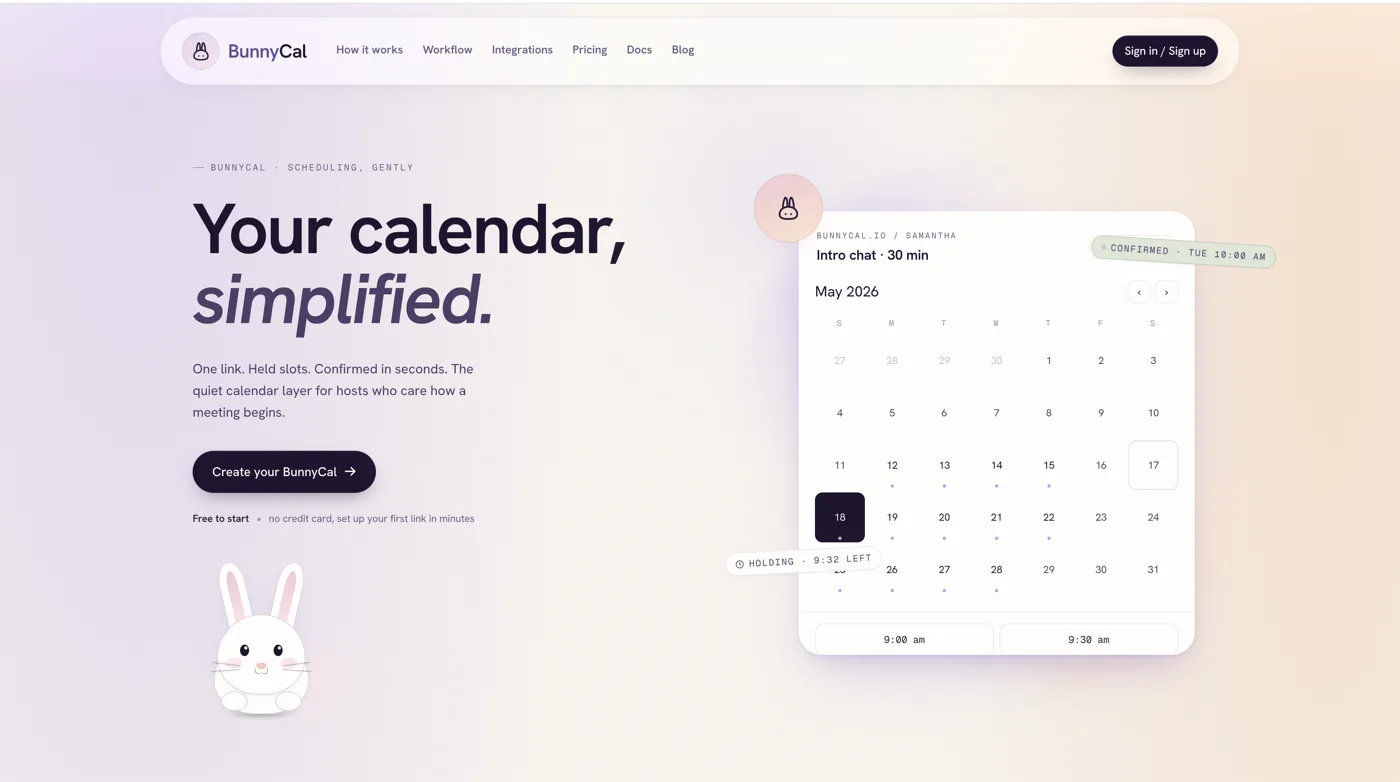
Open bunnycal.io and click Sign in / Sign up.
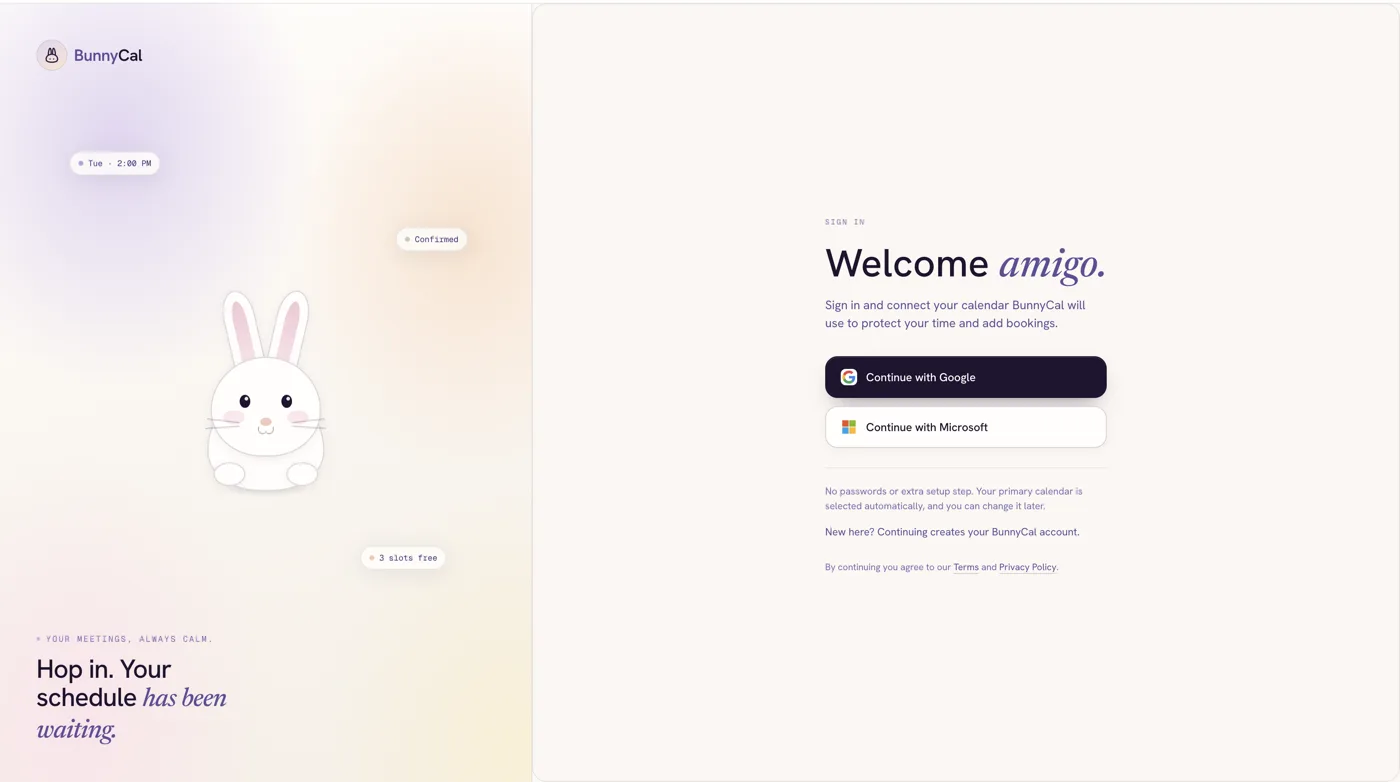
Choose Google or Microsoft. There is no password to invent — you sign in with an account you already use, then give BunnyCal permission to access your Google Calendar or Outlook calendar so it can work out your real availability.
Pick the account you want to use, then the screen that matters: your provider asks what BunnyCal may access.
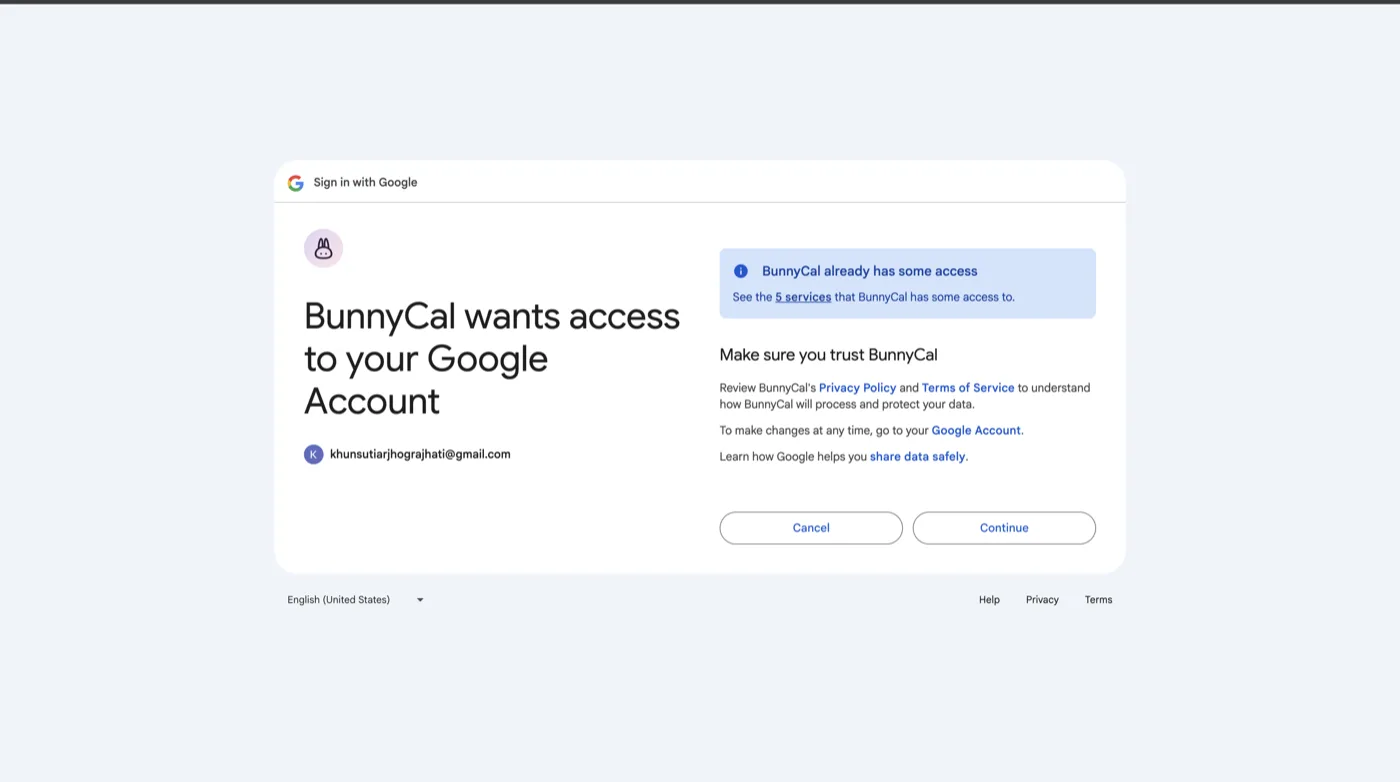
That single screen is what makes everything afterwards work. The access it asks for is:
- View and edit events on all of your calendars — this is how confirmed bookings get written to your calendar, with the customer on the invite.
- See and download any calendar you can access — this is how your existing commitments block out times, so nobody can book over them.
- Your name and email address — so your account and your booking page have something to put on them.
Click continue and you are in. Your calendar is now connected — there is no separate “connect your calendar” step later, because it already happened here.
The three setup screens
Onboarding is three screens. That is the whole thing.
1. What will you use BunnyCal for?
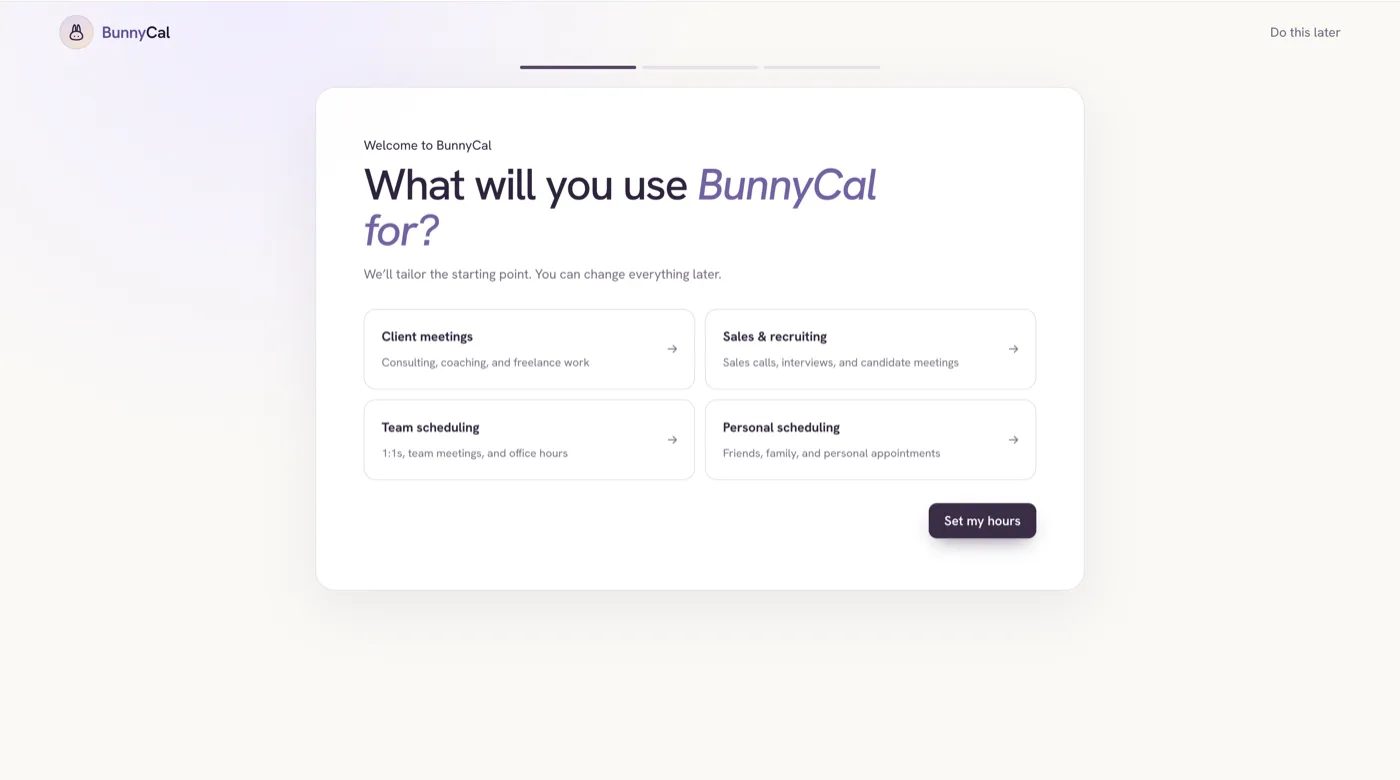
Four options:
- Client meetings — consulting, coaching, and freelance work
- Sales & recruiting — sales calls, interviews, and candidate meetings
- Team scheduling — 1:1s, team meetings, and office hours
- Personal scheduling — friends, family, and personal appointments
This is not a survey. It sets your starting point — pick “Client meetings” and your first booking page is pre-named for a consultation rather than something generic. If you run a salon, a clinic, a studio or a consultancy, “Client meetings” is the one you want.
As the screen says: you can change everything later.
2. Set your availability
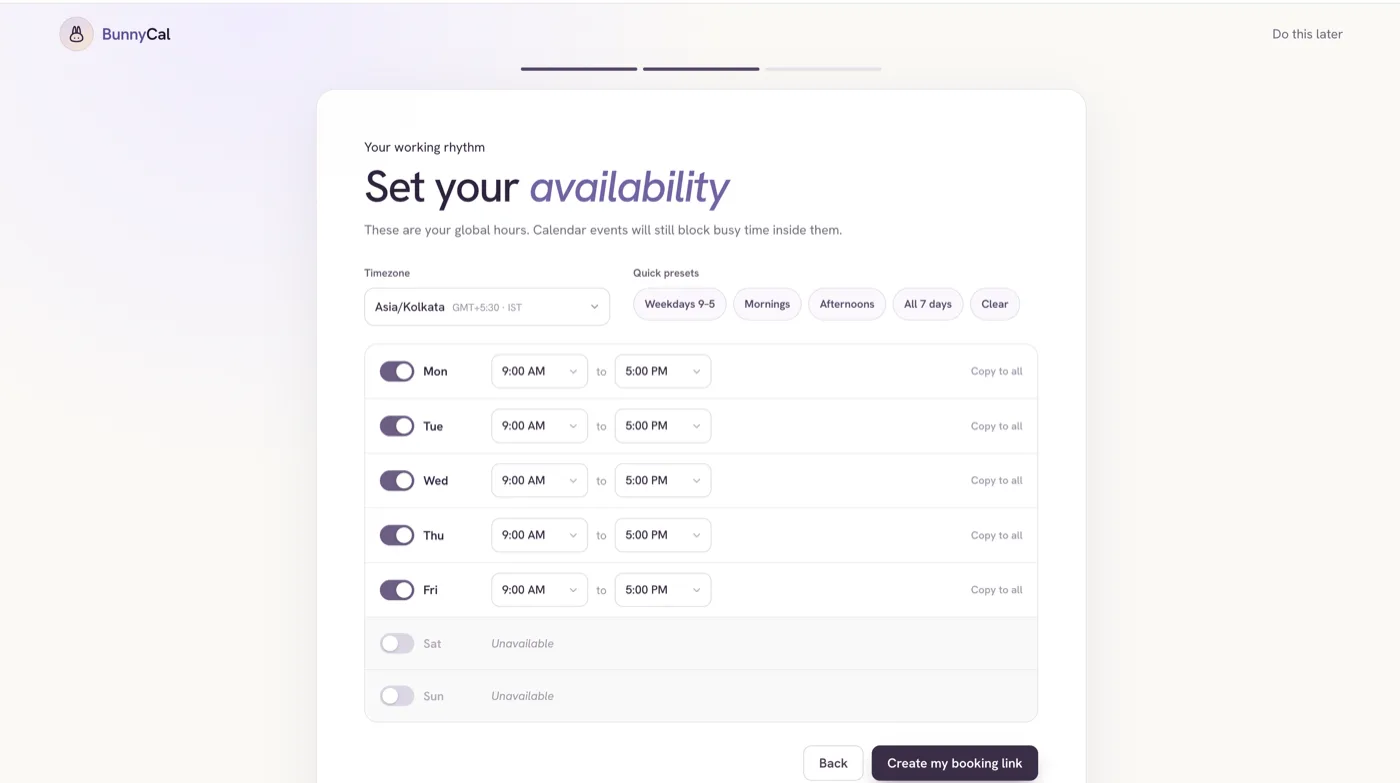
Now the hours you are bookable. There are quick presets — Weekdays 9-5, Mornings, Afternoons, All 7 days — so most people tap one and move on. Then adjust individual days if your week is not uniform. If you never take Friday afternoons, turn Friday off or shorten it.
Your time zone is detected automatically, so usually you just confirm it.
One thing worth understanding, because it is the part that saves you from disasters:
These are your outer limits, not a promise that you are free. Your connected calendar still blocks busy time inside these hours. If you say 9–5 and you have a dentist appointment at 2pm on Thursday, nobody can book 2pm on Thursday.
So you are describing the widest window you would ever accept. Real availability is that window minus whatever is already on your calendar.
Click Create my booking link.
3. Name it and publish
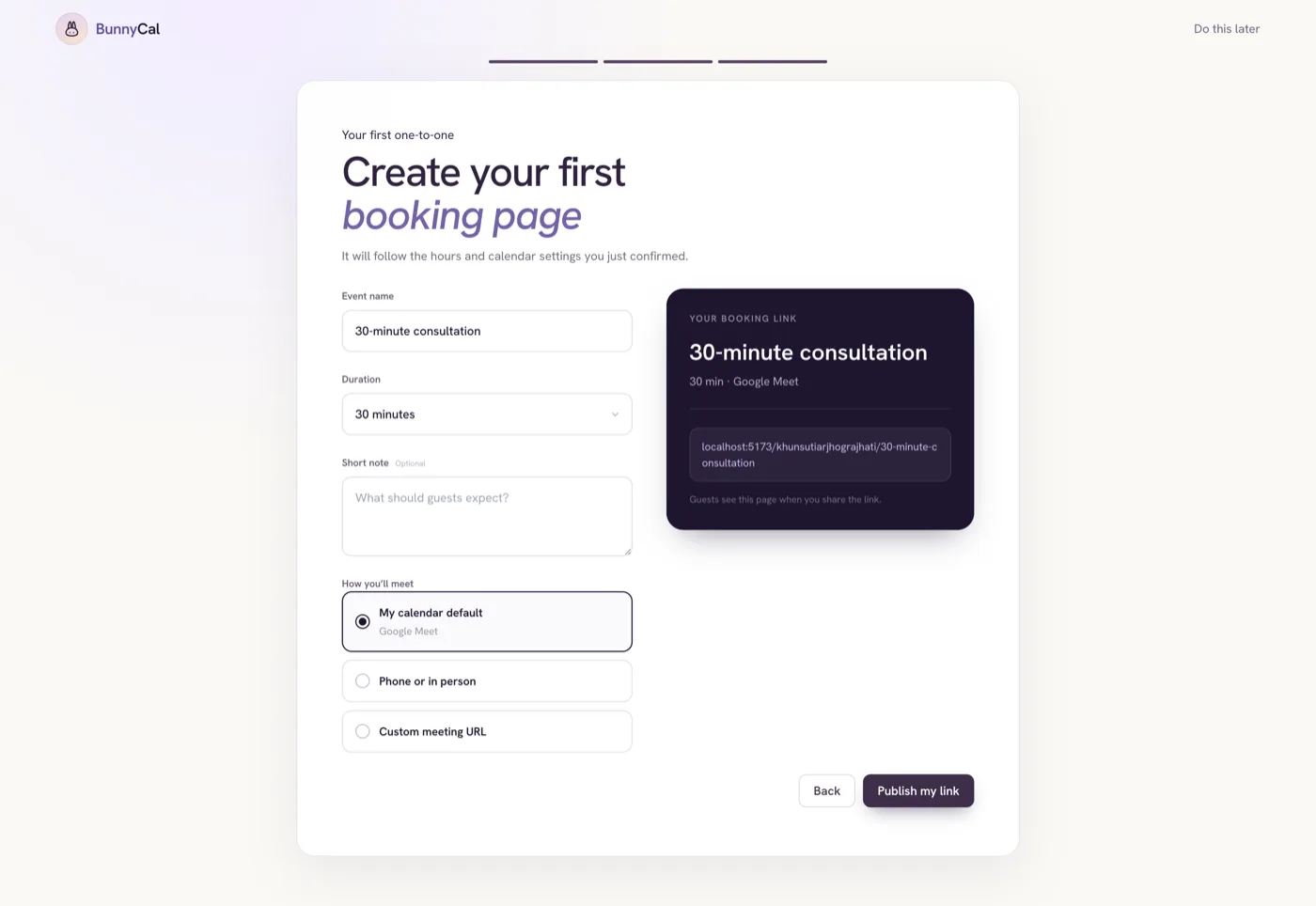
Give the appointment the name your customers would use — “30-minute consultation”, “Initial assessment”, “Discovery call” — or keep the default and move on. Then click Publish my link.
That’s setup finished. You land in your scheduling section, where your event is live and your link is ready to copy.
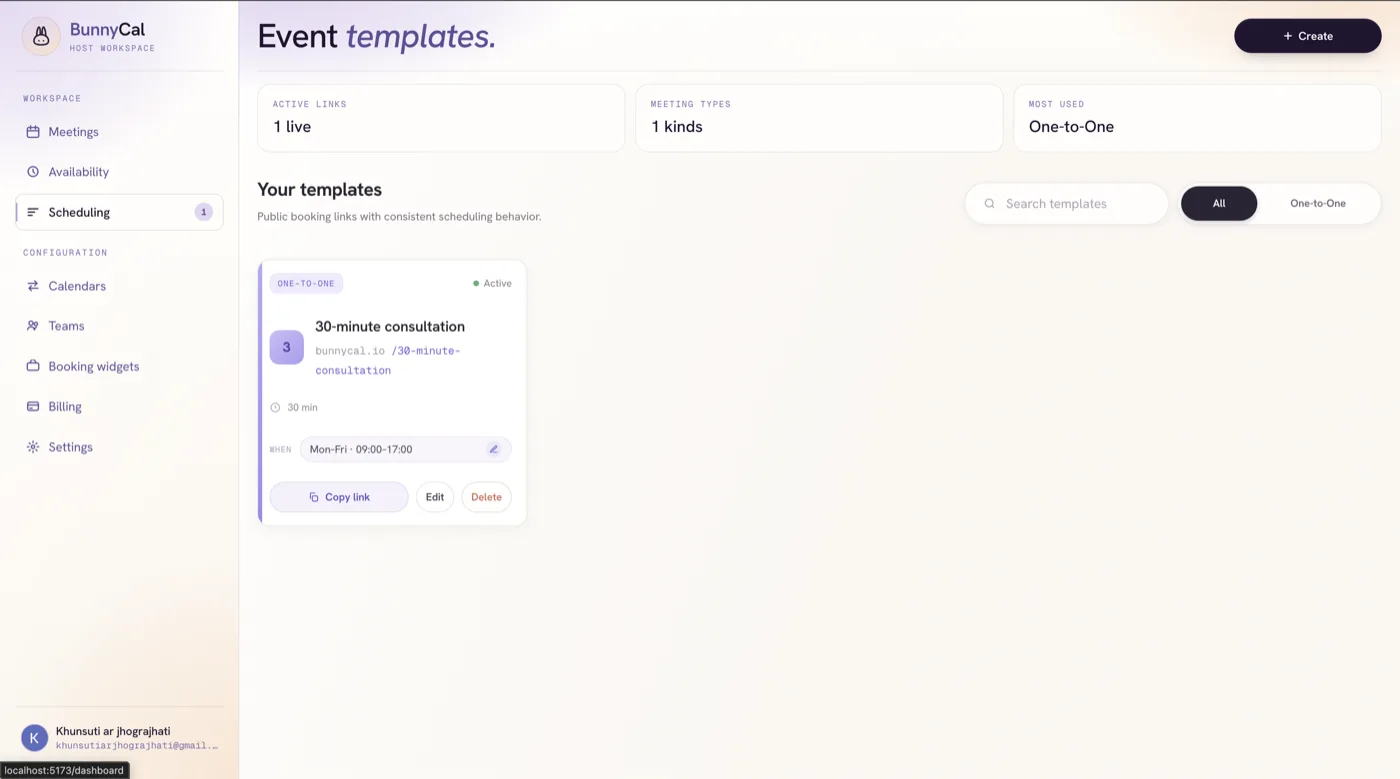
Copy that link. It is the thing you share.
What your customer sees when they book online
This is the half most guides skip, and it is the half that decides whether people actually book.
They open your link and get your booking page:
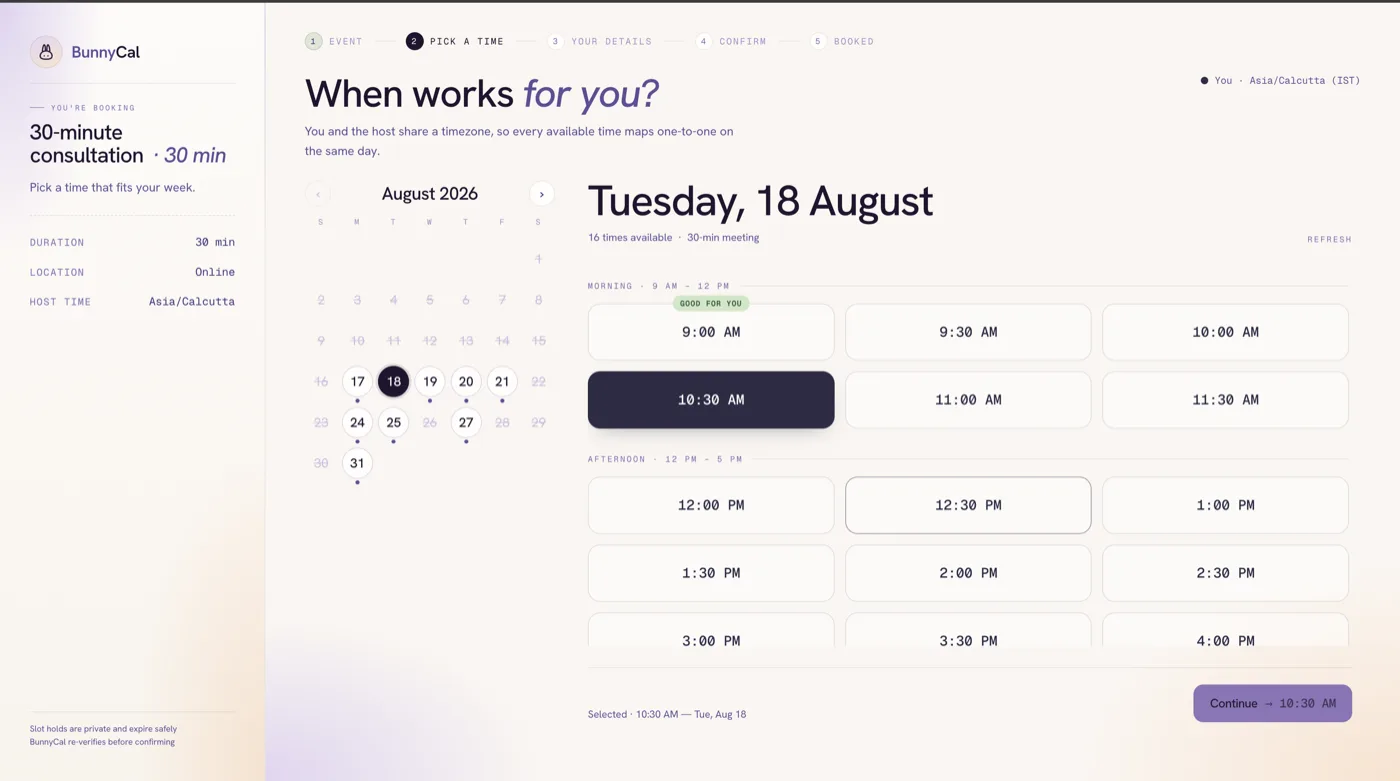
They see only times you are genuinely free, in their own time zone. Nobody has to do the mental arithmetic, which is where most missed appointments start.
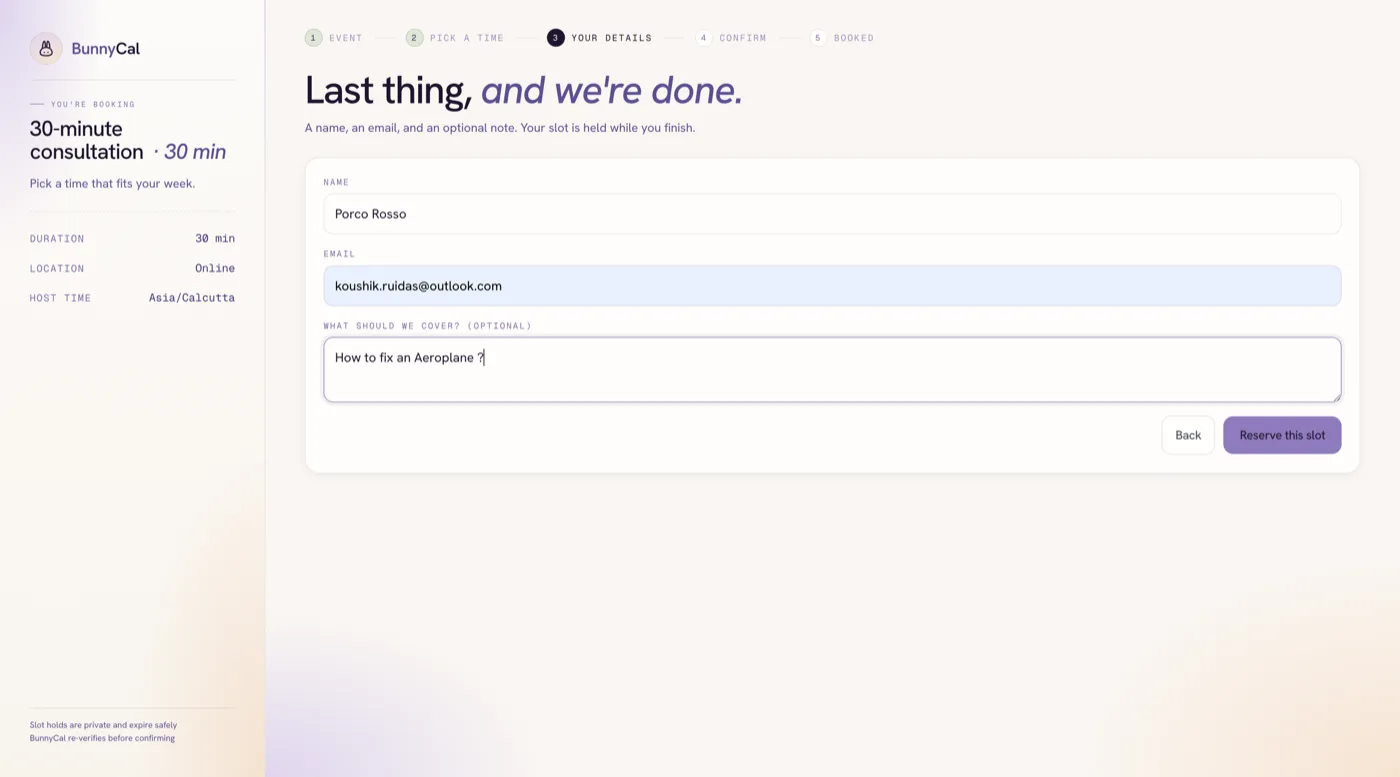
They pick a slot and enter their details — name, email, and anything they want you to know in advance:
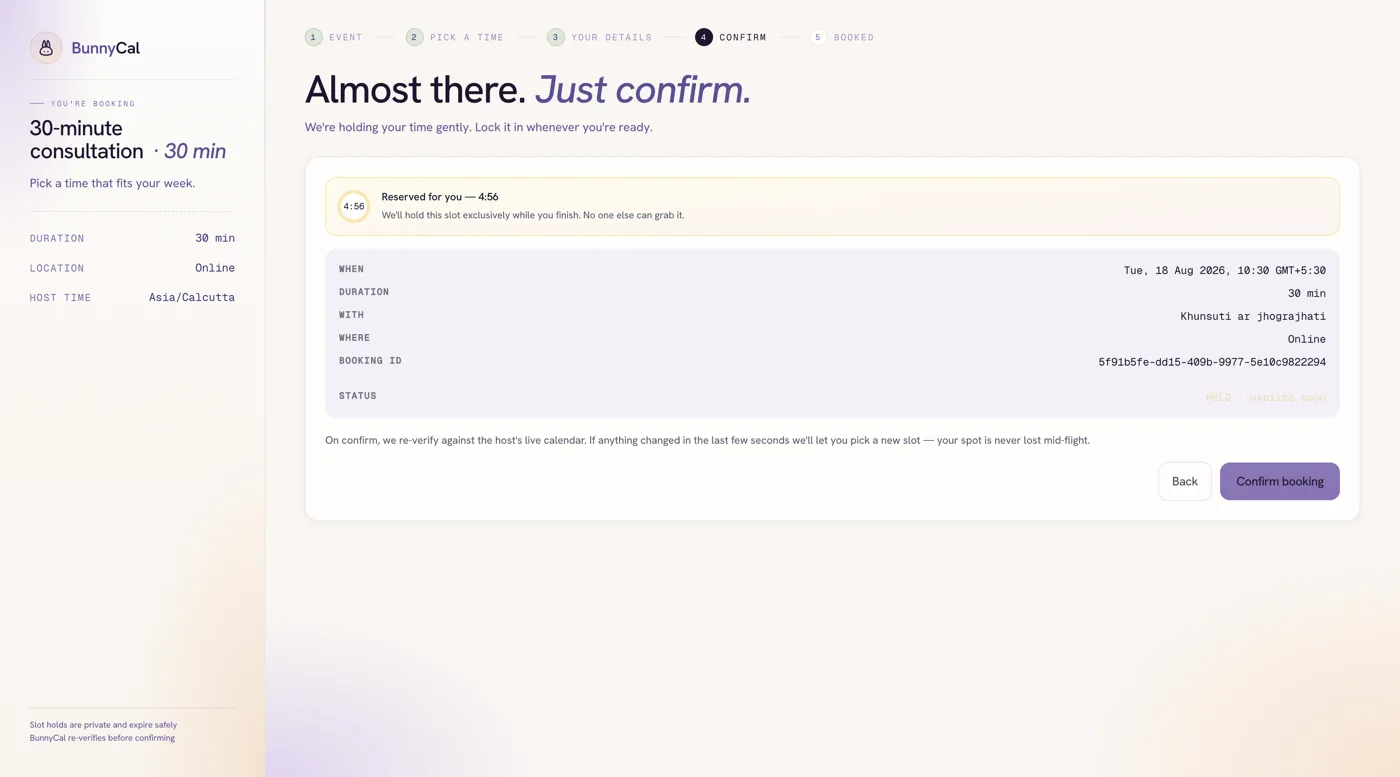
Then they get a summary to confirm. While they are on this screen, the slot is held for five minutes so nobody else can take it out from under them mid-booking:
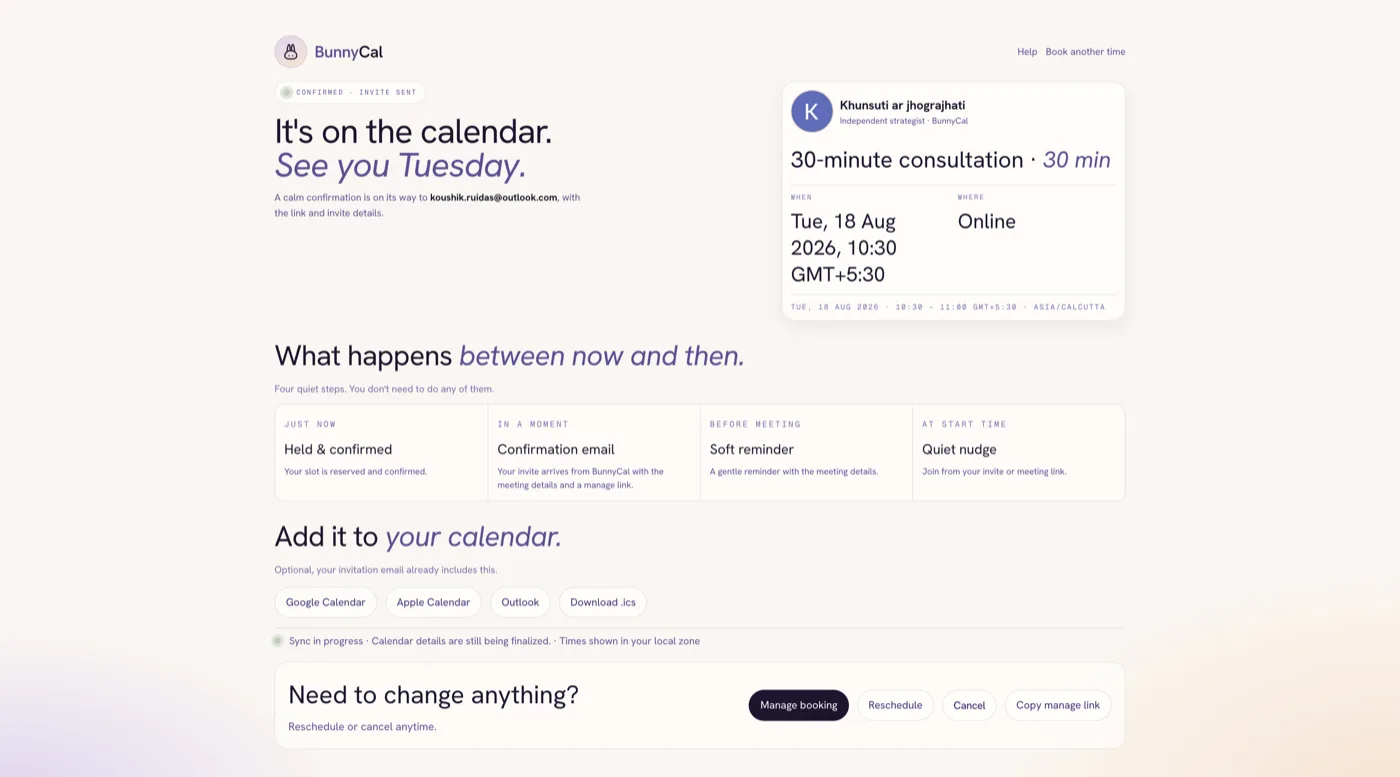
They confirm, and it is done:
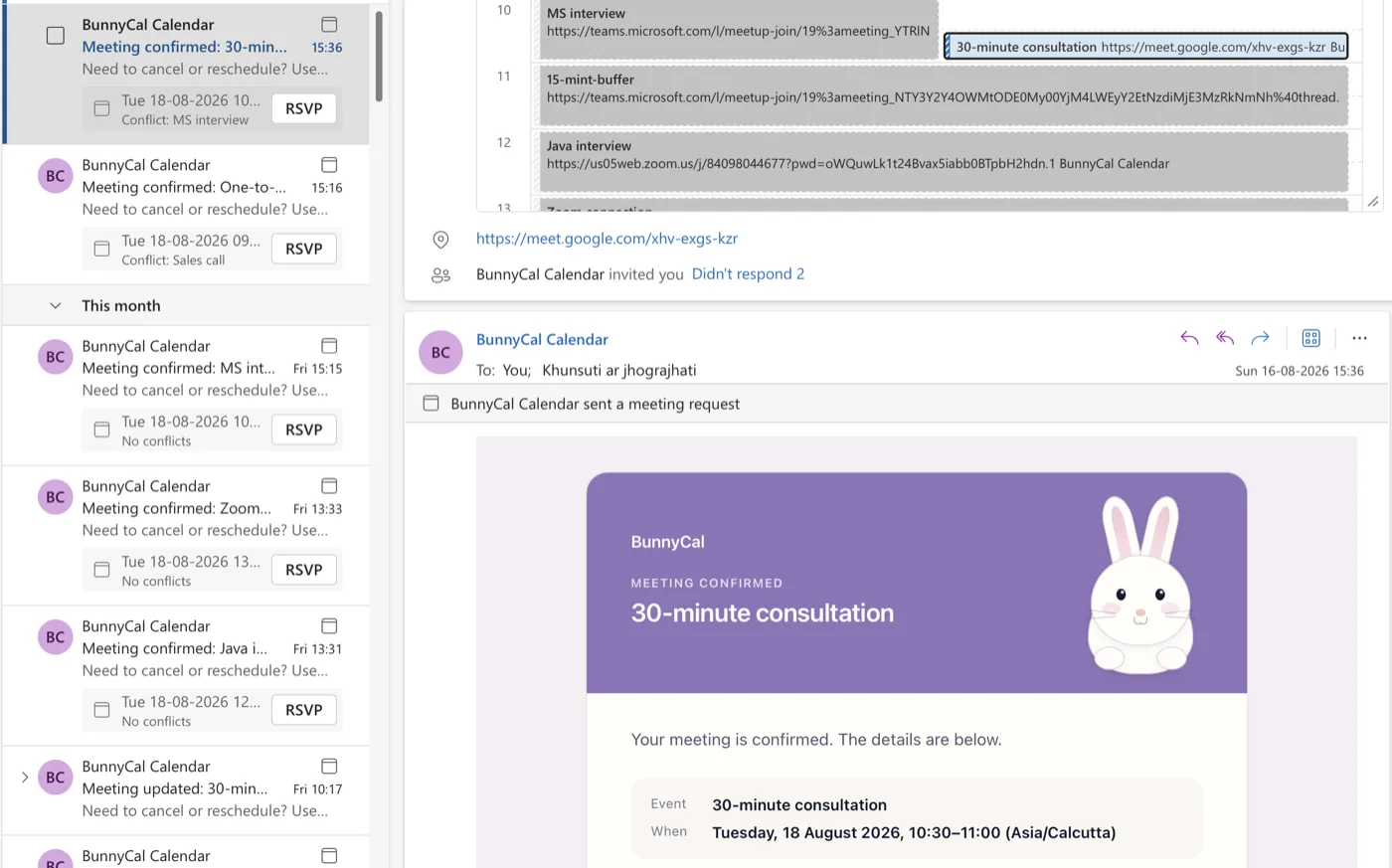
Both of you get a confirmation email with a calendar invite attached — the host and the customer — so the meeting is on both calendars without anyone adding it by hand.
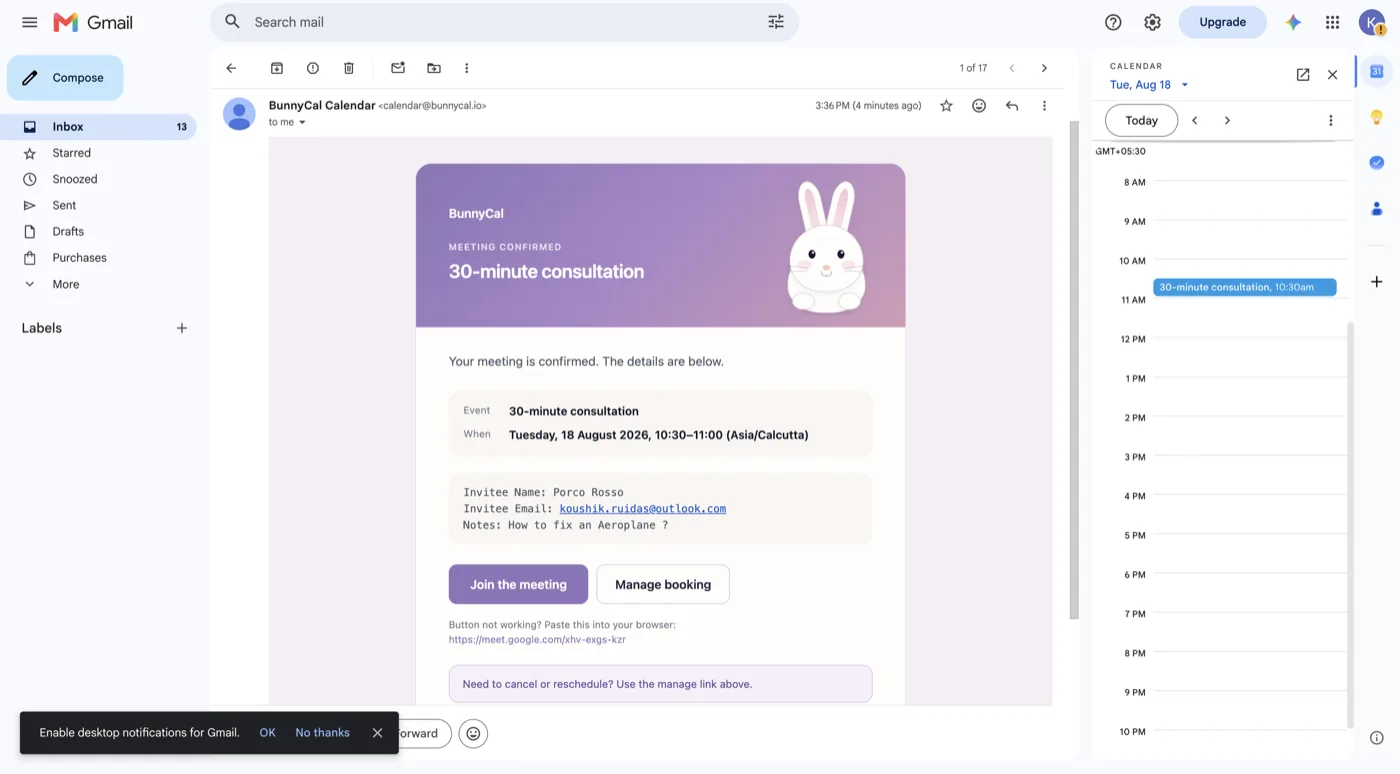
If they need to reschedule, they use the link in that email. It happens without involving you.
And on your side
The booking is simply there when you next look. Your dashboard shows it as confirmed, with the guest’s details and a join button:
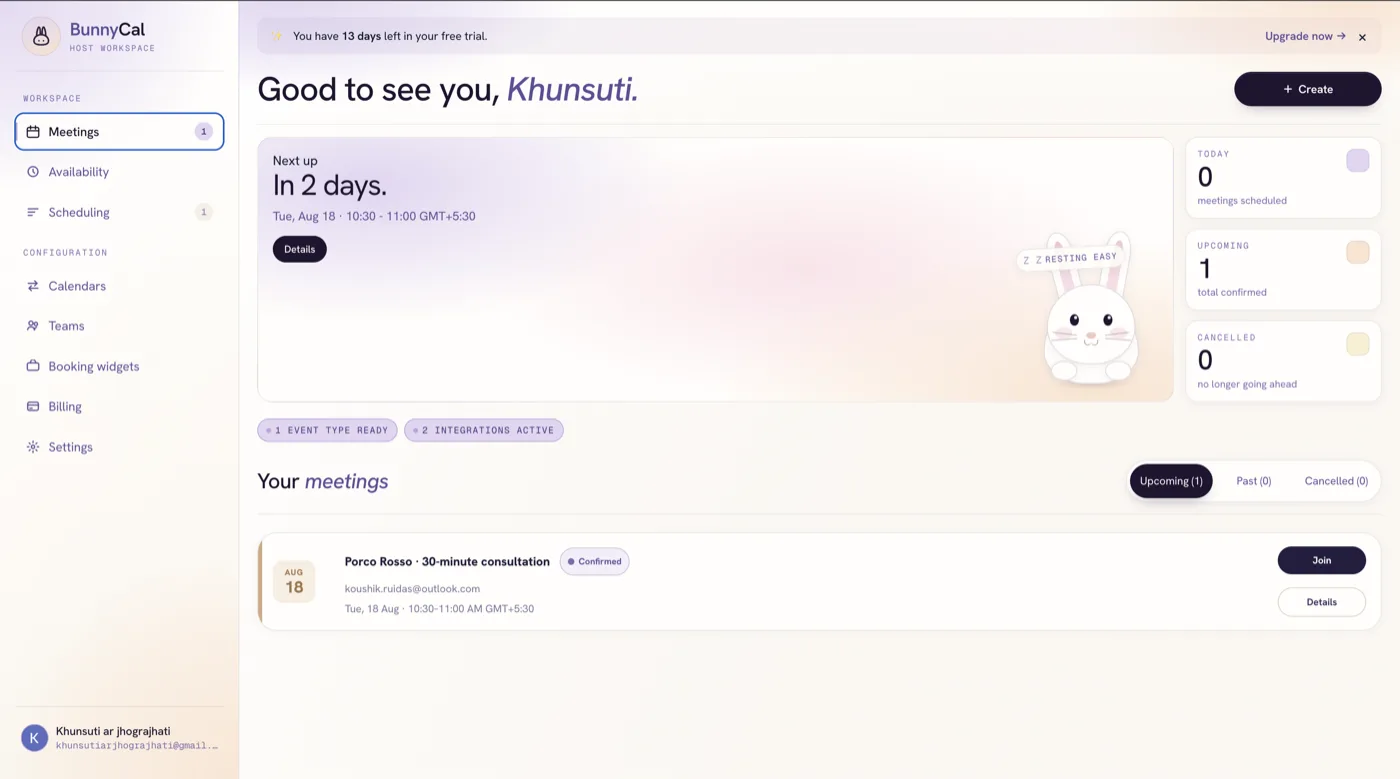
And it is on your availability calendar, which means that time is now blocked — nobody else can book over it:
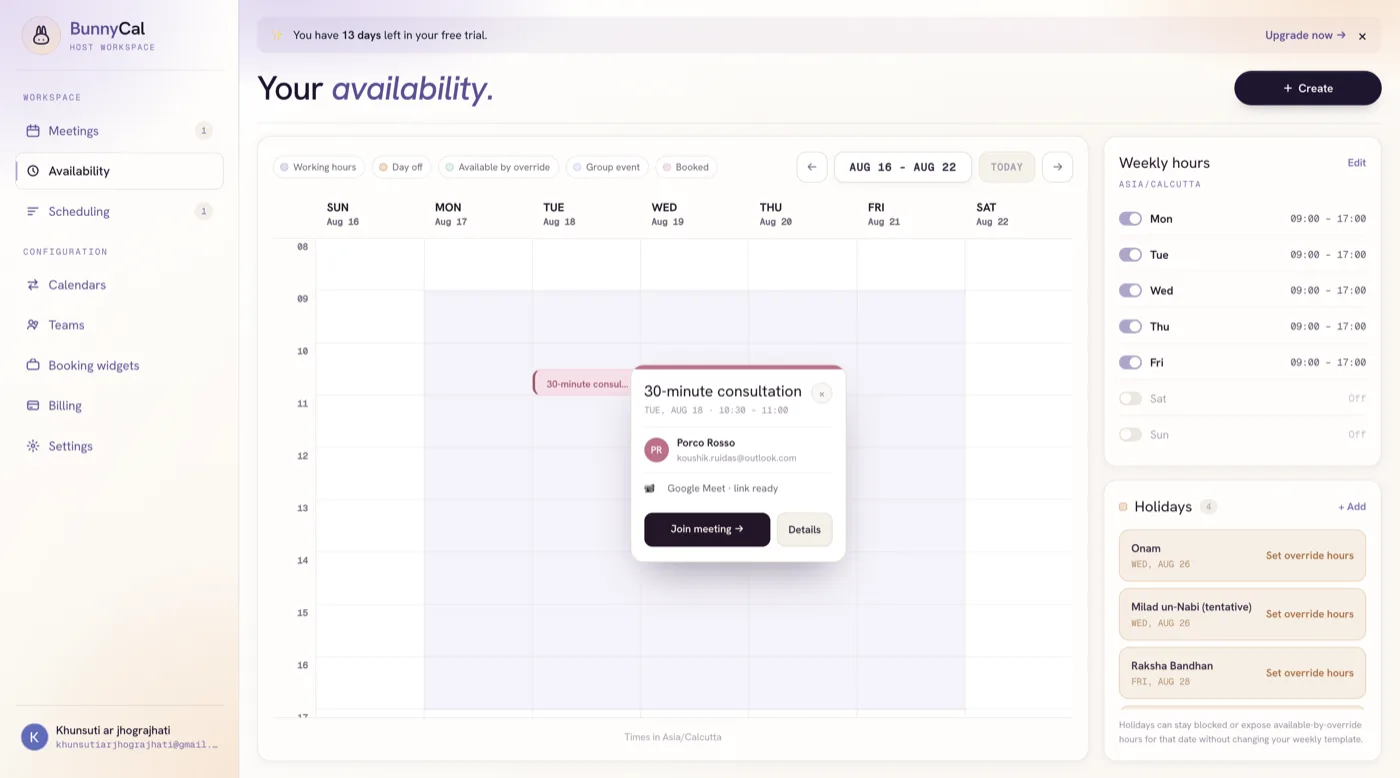
That is the loop closed: one link out, a confirmed meeting back, and your real availability updated without you touching anything.
Where to share your booking link
A booking link only works if people encounter it at the moment they want to book. The highest-value places, roughly in order:
- Your email signature. Every email you send becomes a booking opportunity. “Book a time: [your link]” is enough.
- Your website. A “Book an appointment” button in your main navigation and at the bottom of your services page.
- Your Instagram or Facebook bio. For a lot of local businesses this is the single biggest source.
- Your Google Business Profile. People searching for you locally are the most ready-to-book audience there is.
- Your invoices and quotes. For follow-up appointments.
You can also embed the booking page directly into your website so customers never leave your site.
Common mistakes
Making your booking hours the same as your working hours. Then you have no time for anything that is not a booking. Leave gaps deliberately.
Leaving a calendar disconnected. BunnyCal connects yours at sign-in, so this is usually handled for you. But if you keep a second calendar that also holds commitments — a personal Google Calendar, or an Outlook account from a client — add it under Integrations. A calendar BunnyCal cannot see is a calendar it will cheerfully double-book you against.
Too many options. One clear appointment type converts better than six. Add more only when you genuinely need them.
Burying the link. A booking link on a page nobody visits does nothing. Email signature first.
Common questions
What is the best appointment scheduling software for a small business? The one whose free plan covers what you actually do. Most solo businesses need one appointment type, one connected calendar and unlimited bookings — that is free on BunnyCal, Calendly, Cal.com and several others. The limit you hit first is usually the number of appointment types, so pick based on that rather than on a feature list you will never open.
Can customers book appointments online without an app? Yes. Your booking page is a web link. Customers open it in whatever browser they already have, pick a time, and enter their name and email. There is nothing to install and no account to create on their side.
How do I stop double bookings? Connect the calendar where your real commitments live — Google Calendar or Outlook. Booking software reads your existing events and removes those times from your page automatically, so a slot can only be offered when you are genuinely free. If you keep a second calendar — personal, or a different work account — connect that too, because a calendar the software cannot see is one it will happily book over.
Can people book appointments outside my business hours? They can book at any hour, which is the point — the page takes bookings while you are asleep. But they can only book into the hours you set. Your booking page is open 24/7; your availability is not.
Do I need a website to take online bookings? No. The booking link works on its own, which is why an email signature or an Instagram bio is often the highest-traffic place to put it. If you do have a website, you can embed the booking page so customers never leave your site.
How much does online appointment booking cost? Starting is free. Paid plans across the category run roughly $4–$20 per user per month, and what you are buying is usually multiple appointment types, several calendars, taking payment at the time of booking, or sharing bookings across a team.
Getting started
You can do all of this with BunnyCal’s free appointment scheduling software — one appointment type, one connected calendar, unlimited bookings, no credit card. For a lot of small businesses that is the whole solution and always will be.
If you later need several appointment types, multiple calendars, payment at the time of booking, or bookings shared across a team, that is $4 per seat per month billed yearly.
Set up your booking page — it really is about ten minutes.
Related reading: Multiple calendars, one source of availability · Booking pages that convert · Why time zone bugs are calendar bugs